Design
Why does the interface look like this?
Yellow backgrounds, large letters, oversized buttons. At first glance it may look unusual. It is deliberate: for someone who cannot see the screen, the interface should almost disappear; for someone with some sight, it should be as legible as possible. On this page we show every decision, the standard behind it and what it looks like in the app.
Six principles
High contrast
All five themes target at least 7:1 contrast. In practice they range from 16.7:1 to 21:1.
Never colour alone
A selected setting, a state or an error is always also shown with text, an icon, a thick border or an underline.
A legible typeface
Atkinson Hyperlegible: designed by the Braille Institute for low-vision readers, with look-alike letters drawn to stay distinct.
Large text, no sideways scrolling
Four text sizes. The whole interface grows with the text, and even at the largest size on a phone the page never scrolls sideways.
Large touch targets
Buttons are at least 3rem, about 54 px even at the smallest setting on a phone. The main button spans the full width.
One main action
The home screen has one big button: Start talking. Documents and settings live in separate dialogs, so the screen stays simple.
Five colour themes
Each kind of vision impairment needs something different. In the first conversation the assistant asks how you see and picks a theme for you; you can also change it in Settings.
AaContrast 18:1
Start talkingbill4 sectionsBlack text on yellow
The default. For low-vision users who can't see dark screens and want high contrast.
AaContrast 17.1:1
Start talkingbill4 sectionsYellow text on black
For people sensitive to light, whose eyes tire on bright screens. Used automatically when the device is in dark mode.
AaContrast 21:1
Start talkingbill4 sectionsBlack text on white
For people who prefer a familiar look.
AaContrast 21:1
Start talkingbill4 sectionsWhite text on black
For people comfortable with dark screens.
AaContrast 16.7:1
Start talkingbill4 sectionsNavy and yellow
For people who can't tell red from green: this theme has no red or green at all.
Four text sizes
Base text size of 20, 26, 34 and 44 pixels. Buttons, spacing and dialogs grow along with the text.
- Normal · 20 pxPayment due: 3 March
- Large · 26 pxPayment due: 3 March
- Larger · 34 pxPayment due: 3 March
- Largest · 44 pxPayment due: 3 March
Three caption modes
Every word the assistant says appears on screen as it is spoken. ElevenLabs sends the timing of each character along with the audio; captions follow those timings, not a guess.
Large line
For people who can read medium-sized text. The current word is inverted and underlined.
Giant captions
For people who can't see small text but can see large text a little. Each word fills the screen.
Off
For people who don't use the screen. Captions are hidden from screen readers anyway, so voices never overlap.
Real screens
Screenshots of the app on a phone.
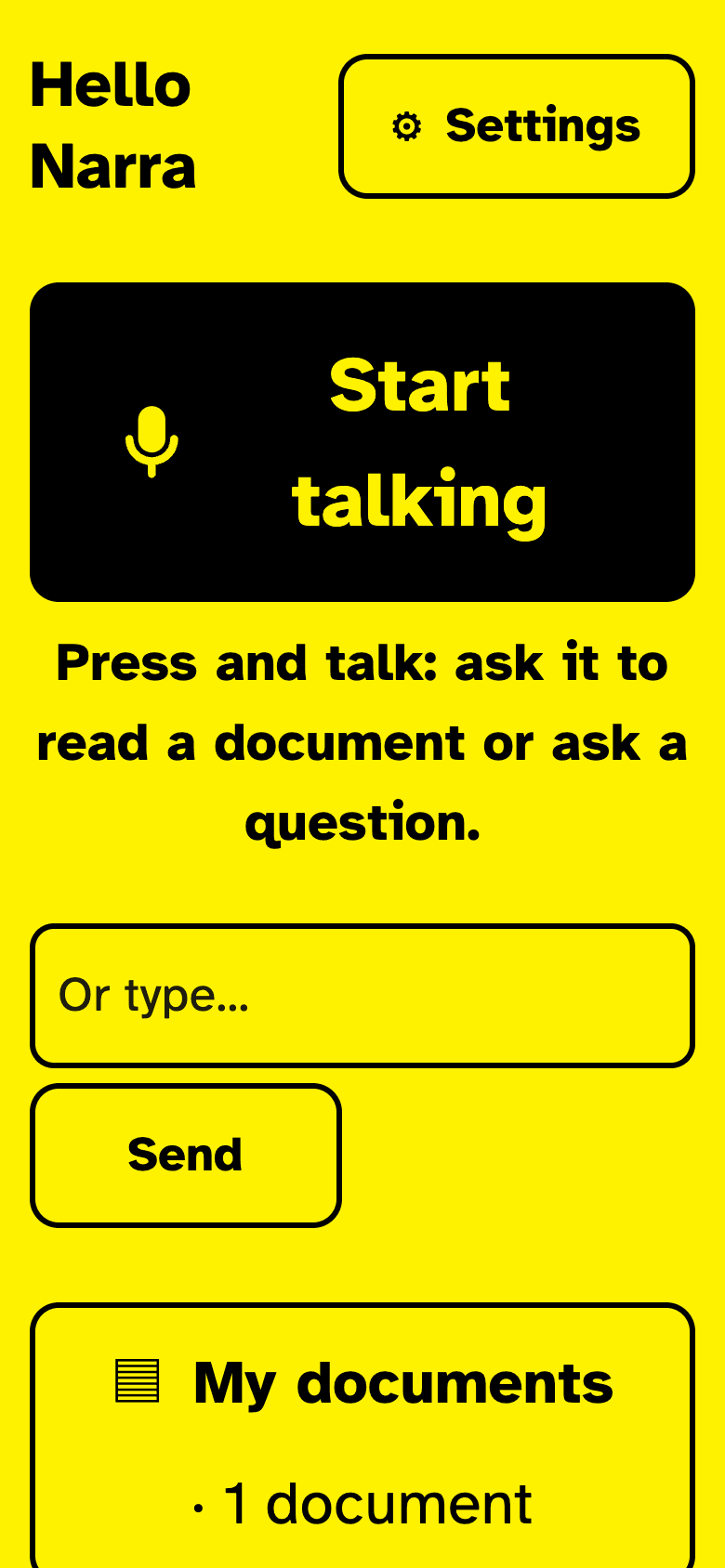
Home screen: one big button and a single line that says what to do. 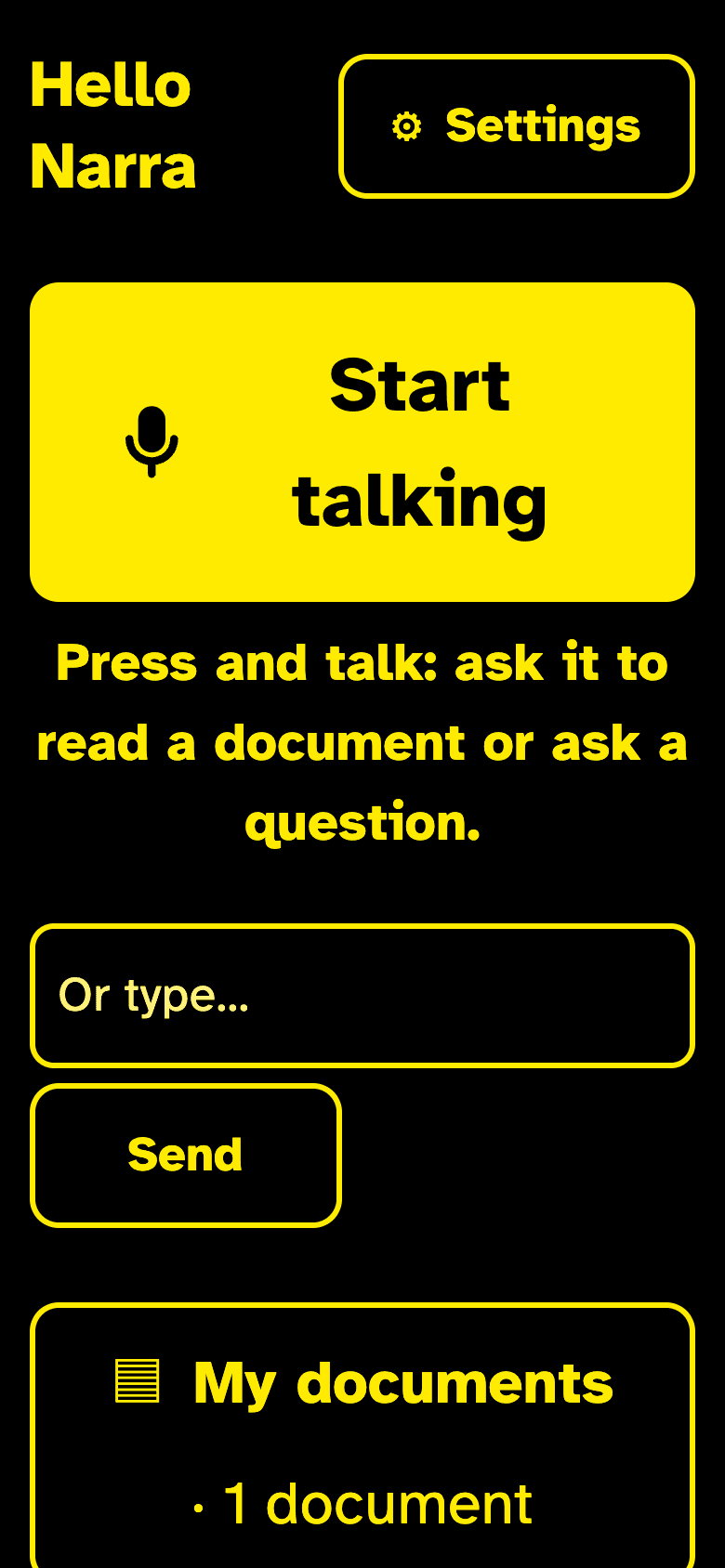
The same screen, yellow text on black. 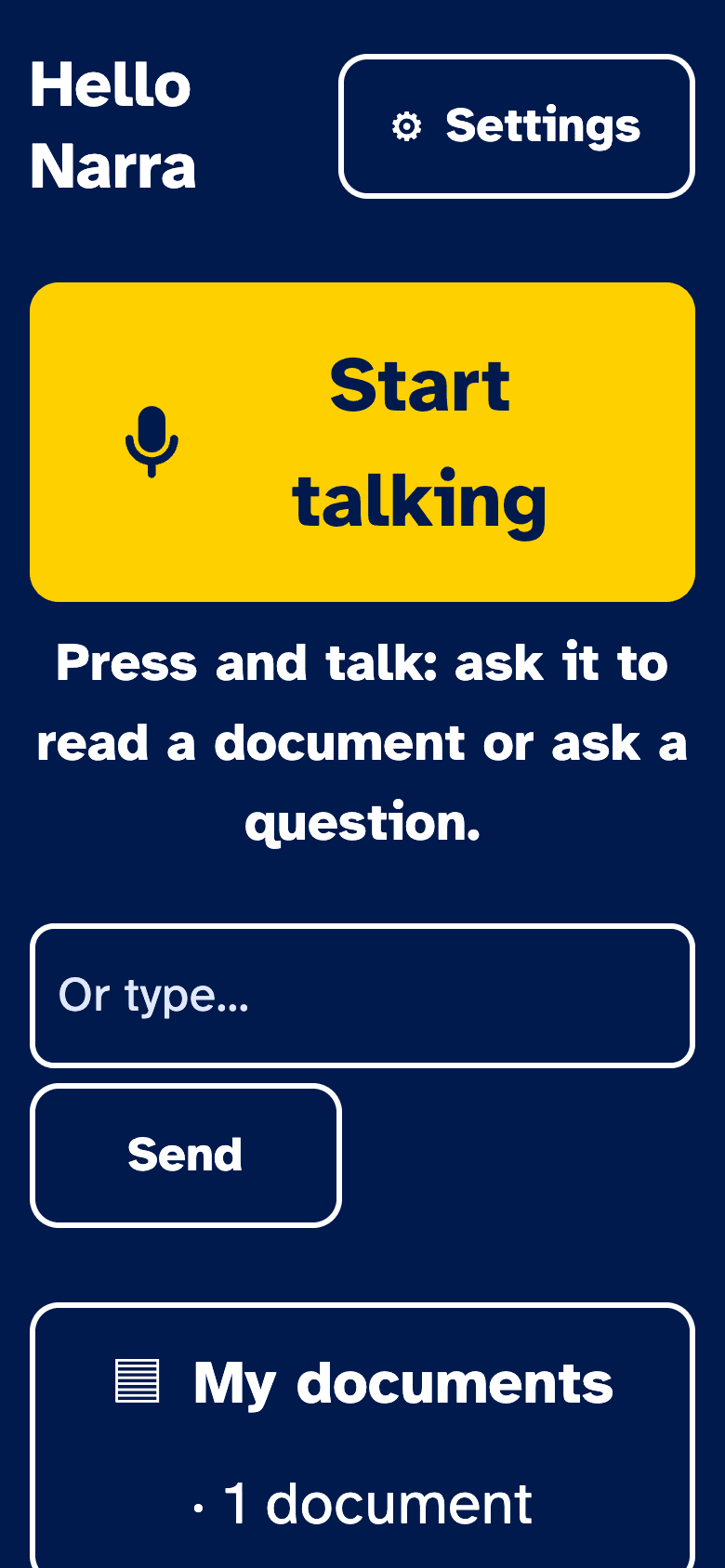
The same screen in the colour-blind friendly navy and yellow theme. 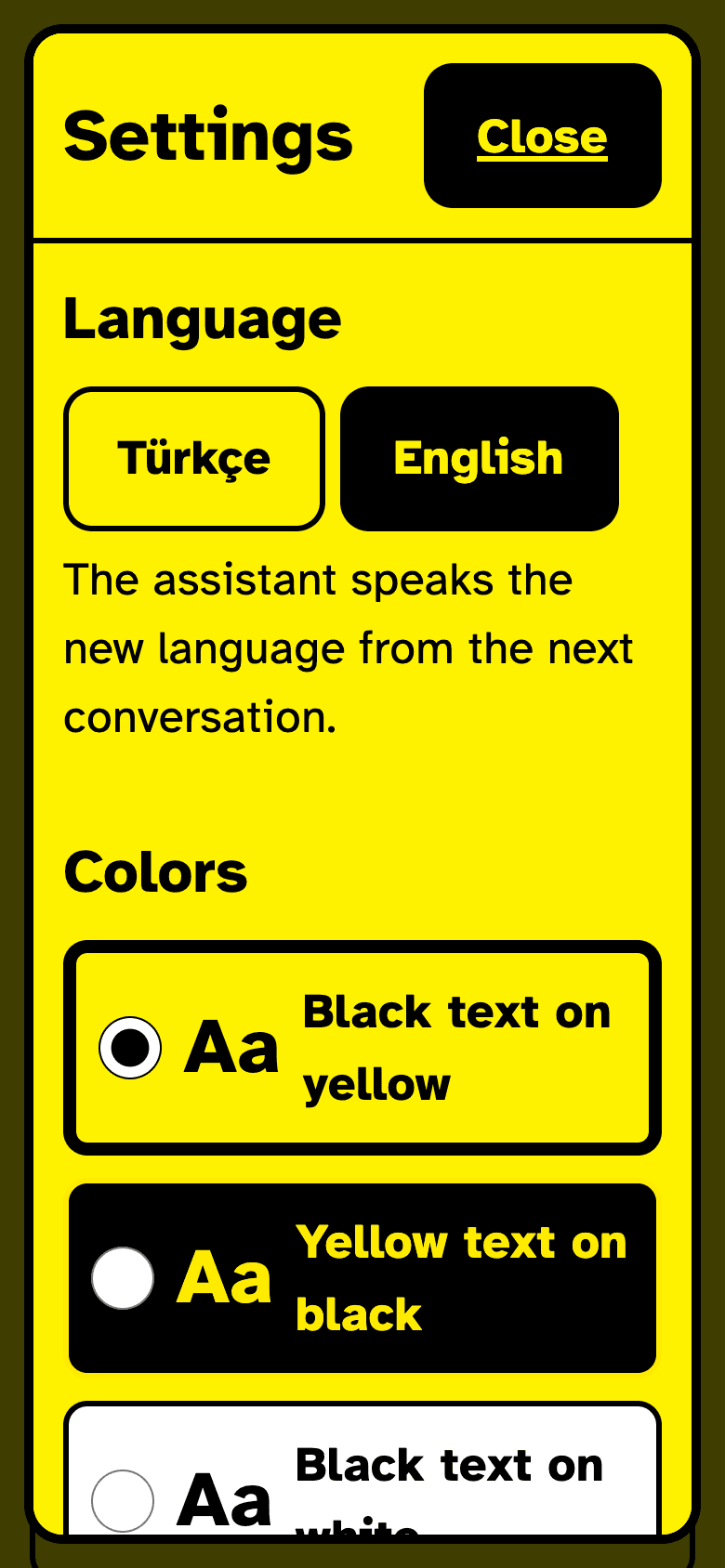
Settings: language, colours, text size, captions, reading speed. 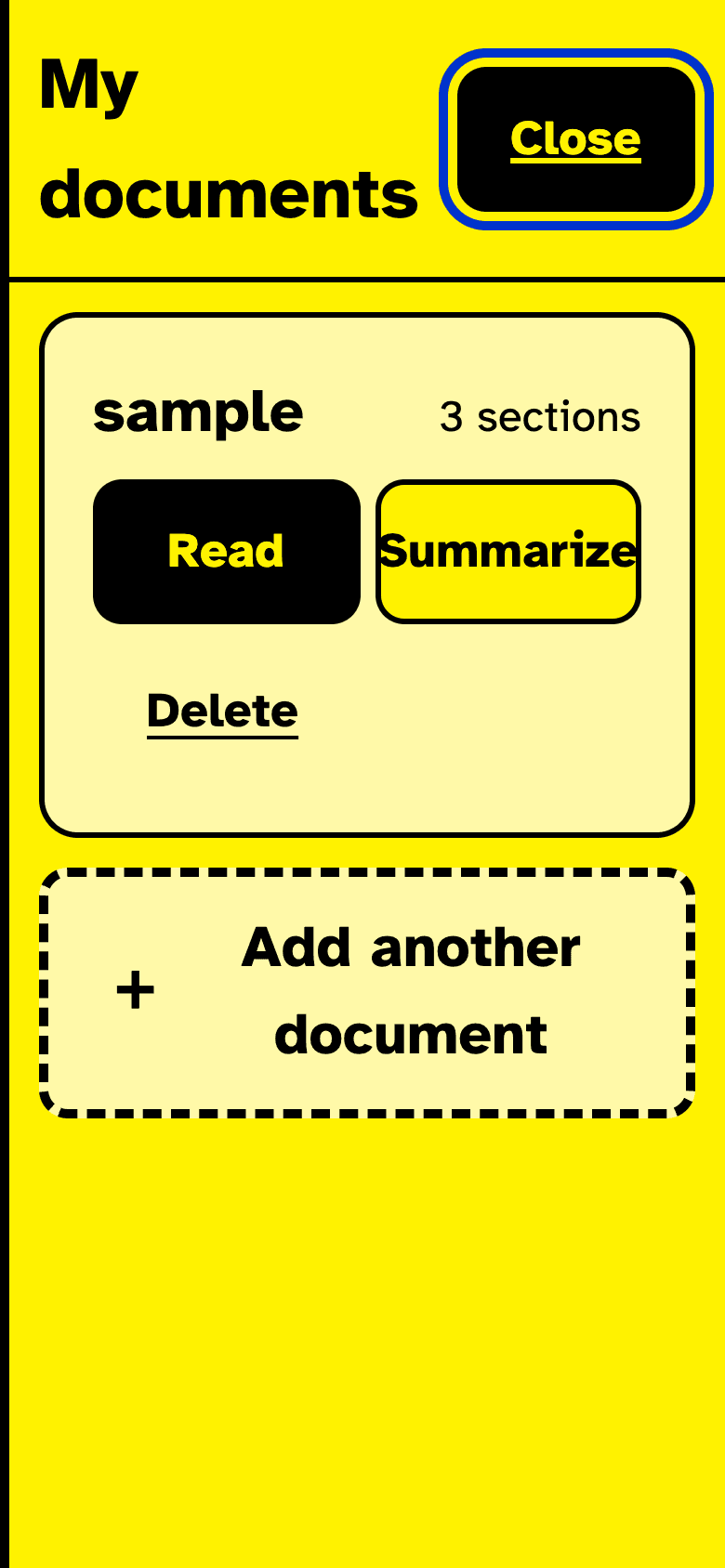
My documents: Read, Summarize and Delete for each document.
What does each setting do?
Every setting can also be changed by voice: just tell the assistant "make the text bigger" or "read slower".
| Setting | What it does | Who it's for |
|---|---|---|
| Language | Switches the interface and the assistant's spoken language between Turkish and English. | Everyone. |
| Colours | Picks one of five high-contrast themes. | People with low vision, light sensitivity or colour blindness. |
| Text size | Enlarges the whole interface in four steps. | People who struggle with small text. |
| Captions | Shows the assistant's words as a line, giant, or off. | People with low vision or hearing difficulties. |
| Reading speed | Sets the assistant's speaking pace to slow, normal or fast. | Anyone who wants to listen slower or move faster. |
| What your assistant has learned | Lists lasting preferences said in conversation ("read numbers digit by digit"); any can be removed. | Everyone. |
| Turn off animations | Disables motion. Off by default. | People bothered by motion or easily distracted. |
| Also send to my screen reader | Sends every reply to the screen reader and braille display as well. | Braille display users, people with hearing difficulties. |
Screen readers and keyboard
- Captions are hidden from screen readers: the assistant's voice and the screen reader never talk over each other.
- Important changes (document uploaded, conversation ended) are announced to the screen reader with a short message.
- When a document is deleted, focus moves to the next one; when a dialog closes, focus returns to the button that opened it.
- While giant captions are on, the page behind is disabled and keyboard focus stays on the controls at the bottom.
- Files can be dropped anywhere on the page; while dragging, a large drop area covers the screen.
Keyboard shortcuts
- Alt+Shift+K
- Start or end the conversation
- Alt+Shift+M
- Mute or unmute the microphone
- Alt+Shift+Y
- Upload a document
- Esc
- Leave giant captions
They don't clash with screen reader keys (Ctrl+Option, Insert, Caps Lock).
How we test
- axe-core scans of every theme against WCAG 2.2 AA, AAA and best-practice rules: 0 violations.
- Keyboard order, reflow on phones, Windows High Contrast mode and shortcuts with automated browser tests.
- The whole journey, from sign-up to reading a document, end to end on the live site.
Automated tests don't replace real users. Our most important next step is usability testing with blind and low-vision people on NVDA, JAWS and VoiceOver.
Try it yourself
Currently in closed beta: only invited accounts can sign in.